How to Sign a Word Document Electronically
By the Signatura team · Published August 3, 2026 · Updated October 5, 2026
Quick answer
There are three ways. Paste an image of your signature into the document; use Word's own digital signature, which needs a signing certificate before it will sign anything — via Insert → Add a Signature Line for a visible one, or File → Info → Protect Document → Add a Digital Signature for an invisible one; or upload the .docx to an e-signature tool and send it. All three are electronic signatures under US law. They differ enormously in what you could prove later.
People mean three different things by “signing a Word document electronically”, and the difference between them only matters when someone disputes the signature. All three are legitimate. Only one produces evidence.
Option 1: Insert a picture of your signature
The fastest method, and the most common.
-
Sign a blank sheet of paper and photograph or scan it — or skip the paper and draw or type one with our free signature generator, which downloads a transparent PNG that sits cleanly on the page.
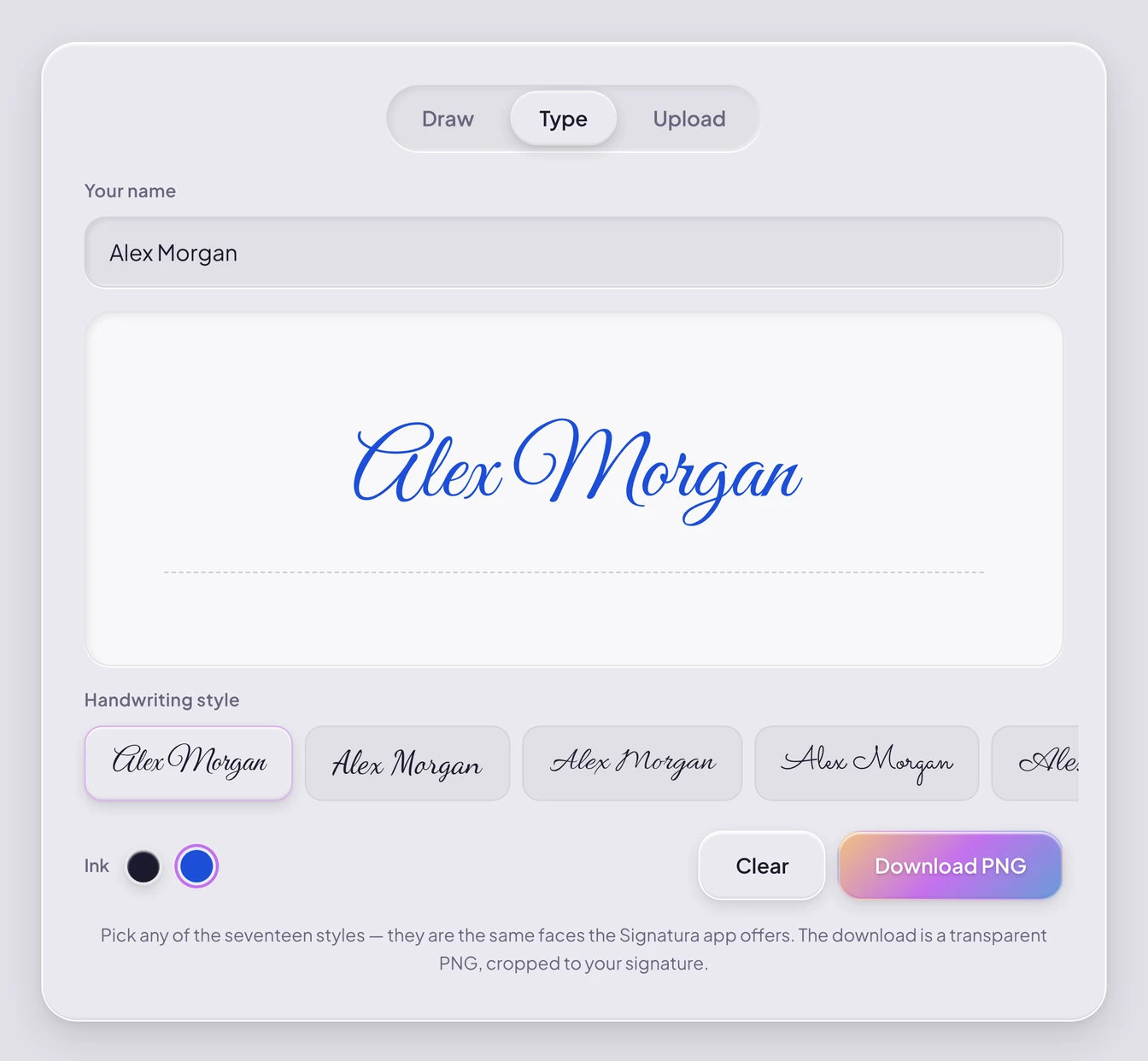
Type a name, pick a style and an ink, and download a transparent PNG. -
In Word, go to Insert → Pictures and place the image where the signature belongs.
-
Crop it, and set Wrap Text → In Front of Text so you can position it freely.
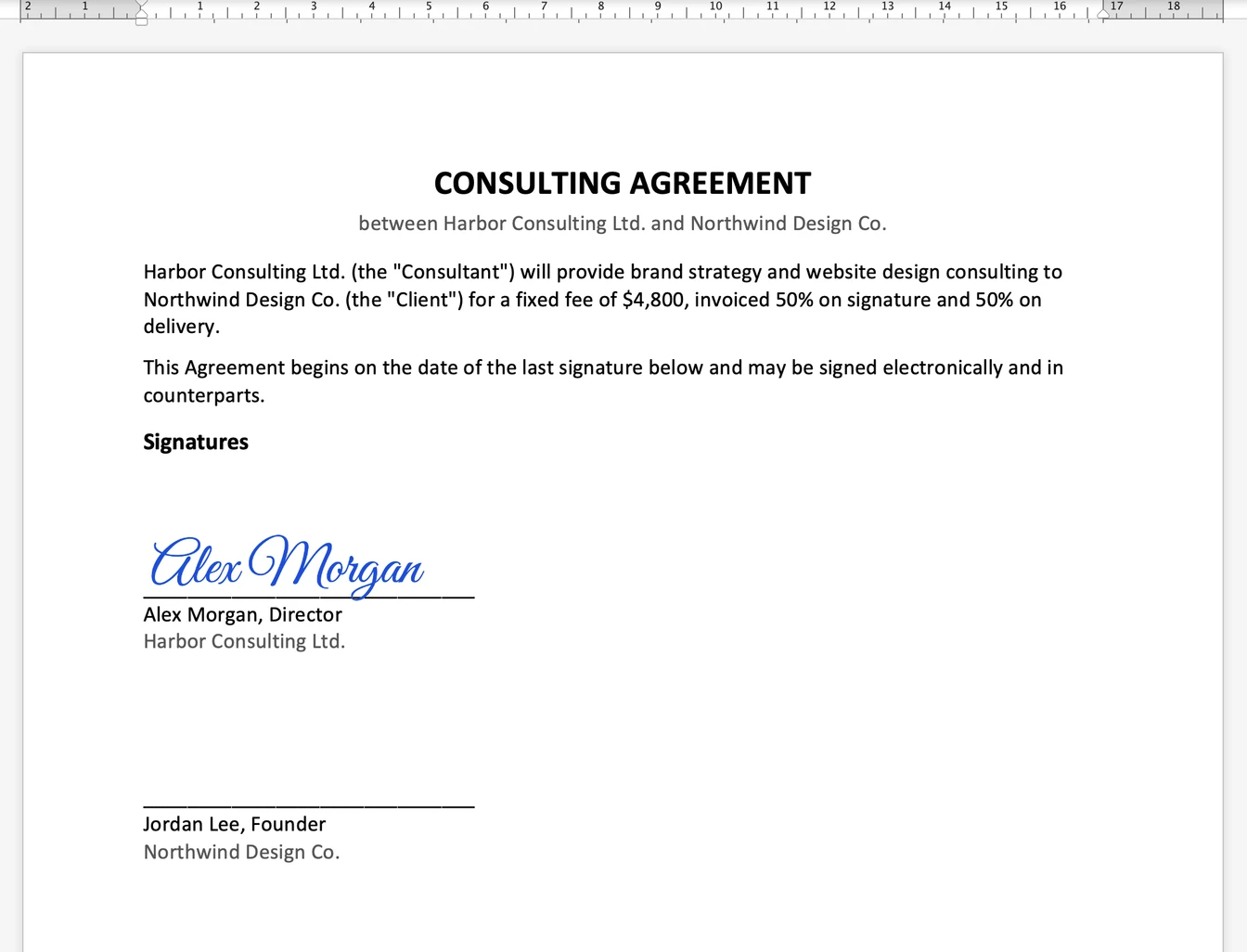
Set to In Front of Text and dragged onto the line. It is still only a picture in the file. -
Save as PDF if you want to discourage casual editing — File → Save As → PDF.
This takes a minute and is fine for low-stakes documents. Understand what it is: a picture, sitting in an editable file. Nothing records who placed it, when, or from where, and anyone who opens the document can move it, copy it into another document, or delete it without leaving a trace.
Option 2: Create a digital signature in Word
This is the one people mean when they search for a digital signature specifically, and it is a real cryptographic signature rather than a picture. Microsoft defines it as “an electronic, encrypted, stamp of authentication on digital information”, where “a signature confirms that the information originated from the signer and has not been altered.”
Word offers two routes to it, and they produce the same underlying signature.
A visible signature line. On the Insert tab, choose Add a Signature Line in the Text group, then fill in the suggested signer’s name, title and email address, plus any instructions. When the file reaches the intended signer, they see the line “and a notification that their signature is requested”, and they can “Type a signature”, “Select a picture of an inked signature”, or “Write a signature by using the inking feature of a touch-screen PC”. The part that matters is what happens underneath: per Microsoft, “when the signer adds a visible representation of a signature to the document, a digital signature is added at the same time to authenticate the signer’s identity.”
An invisible digital signature. If you want to authenticate the document without showing anything on the page, Microsoft’s steps are: on the File tab select Info, then Protect Document, then Add a Digital Signature; pick an option from the Commitment Type list; type a reason into the Purpose for signing this document box; then Sign. Signed files “have the Signatures button at the bottom of the document.”
Two consequences worth knowing before you start. A signature line inserted on its own signs nothing — until someone actually signs it, it is a placeholder with a name under it. And once a signature is applied, Microsoft warns that “a digitally-signed document becomes read-only to prevent modifications”, so this is the last step in your process, not a middle one.
The certificate is the real obstacle
Neither route above works without a signing certificate, and this is where most people stop. Microsoft is direct about it: “to create a digital signature, you have to have a signing certificate, which proves identity”, and “a digital signature or ID is more commonly known as a digital certificate.”
There are two ways to get one, and they are not equivalent.
From a certificate authority. Microsoft describes a CA as “an entity similar to a notary public” that “issues digital certificates, signs certificates to verify their validity and tracks which certificates have been revoked or have expired.” Their guidance is that “there are many commercial third-party certificate authorities from which you can either purchase a digital certificate or obtain a free digital certificate.” Note the renewal cycle: “a certificate is usually valid for a year, after which, the signer must renew, or get a new signing certificate, to establish identity.”
Or make your own, in about a minute. Microsoft ships a tool for this. Their instructions are to open Windows Explorer, navigate to C:\Program Files\Microsoft Office\root\Office16 (or C:\Program Files (x86)\Microsoft Office\root\ on 32-bit Microsoft 365), run SelfCert.exe, type a descriptive name into the Your certificate’s name box, and select OK.
That is genuinely fast, and it is also where the method quietly fails for anything you send to someone else. Microsoft flags it themselves: “if you digitally sign a document by using a digital certificate that you created, and then you share the digitally-signed file, other people cannot verify the authenticity of your digital signature without manually deciding to trust your self-signed certificate.”
Read that plainly. A self-signed certificate proves your identity to you. The counterparty gets a signature their software cannot validate unless they take a deliberate step to trust a certificate issued by the very person asking them to trust it. SelfCert.exe is also a Windows path — Microsoft’s instructions for viewing the certificate afterwards use certmgr.msc, so this route is not available in the same form on a Mac.
With a certificate from a real CA, a Word digital signature is genuinely strong: it is cryptographically bound to the document and invalidates if the file changes. The obstacle is practical rather than technical. Your signer has to obtain and maintain a certificate before they can use it, and most people asked to sign a contract will not do that.
Option 3: Send the .docx for signature
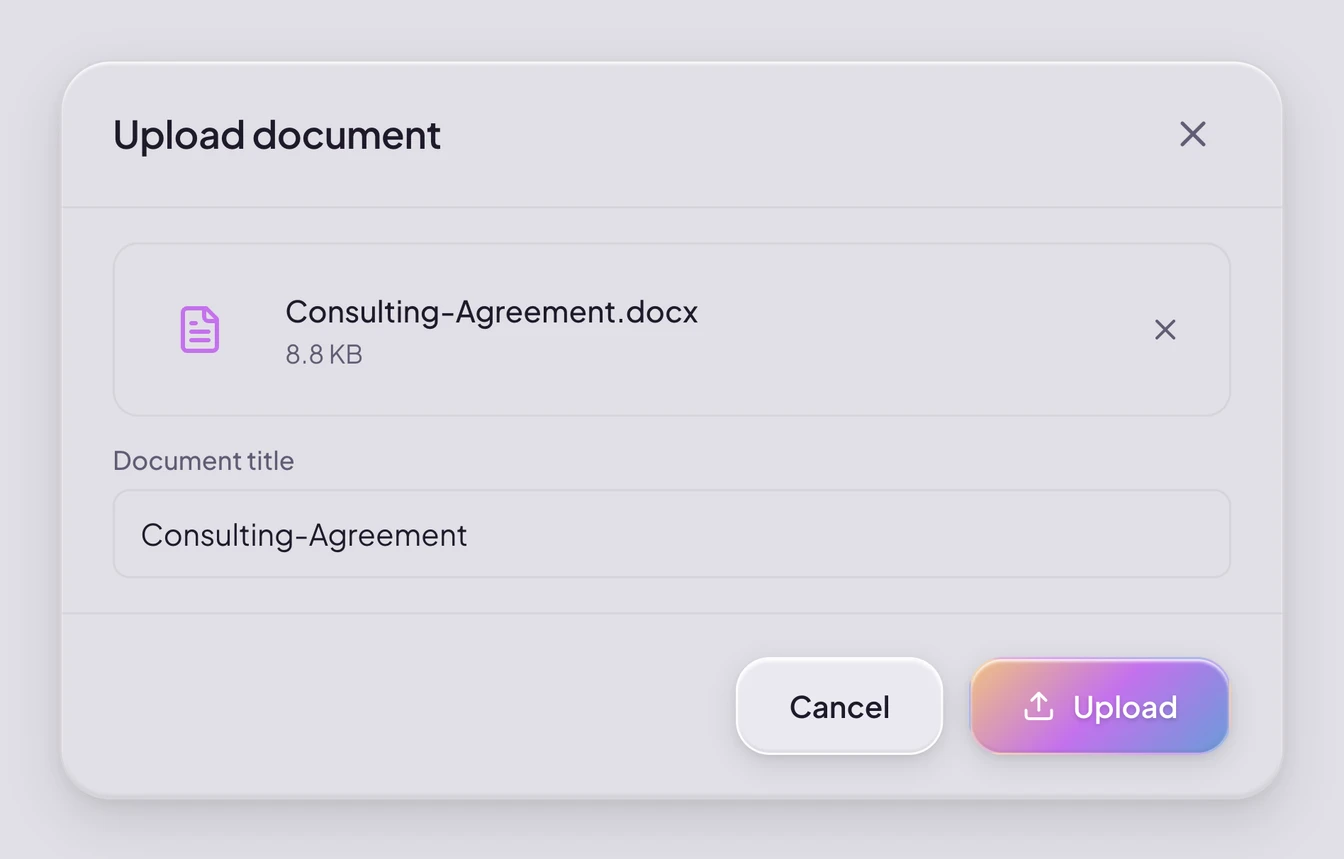
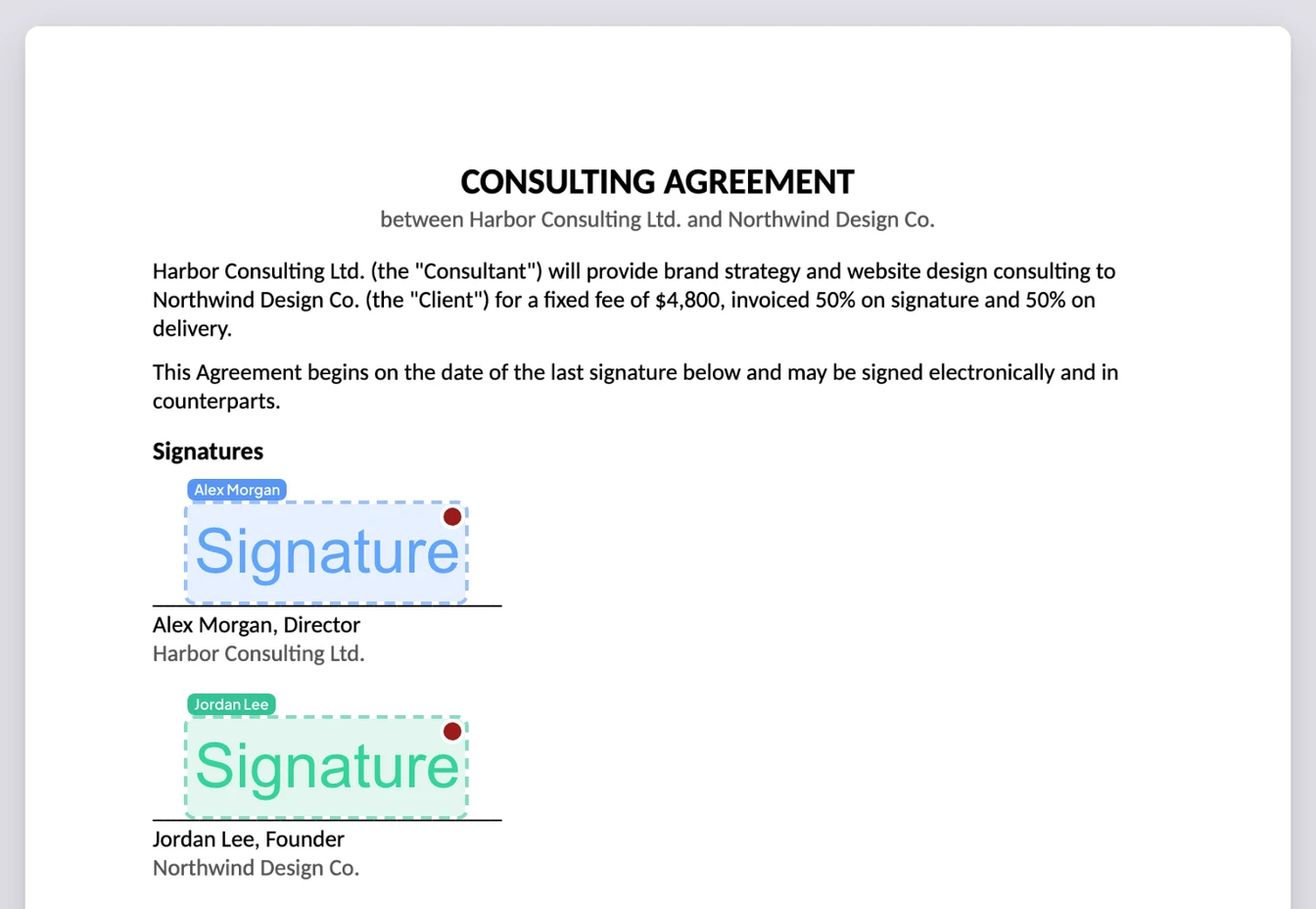
Upload the Word file to an e-signature tool, place fields, and send it. The signer opens a link in their browser and signs. No certificate, no Word licence, no account.
Signatura accepts .docx directly, up to 25MB, alongside PDF, PNG and JPG. Worth knowing exactly what happens to the file: the conversion runs in your browser, not on a server. The document is converted to page images locally, assembled into a PDF, and it is that PDF that gets uploaded and signed. Your original .docx never leaves your machine.
One honest consequence: Word doesn’t draw the pages — your browser does. Signatura reads the layout Word saved — page size and margins, fonts, text sizes, colours, alignment, pictures, headers and footers — and sets the text in open fonts made to the same measurements as Word’s standard ones: exactly for Calibri, Arial, Times New Roman and Courier New, closely for Cambria and Georgia. Aptos, the default font in recent versions of Microsoft 365, has no exact equivalent, so a long paragraph can break a line in a different place. Any other font is used if the file embeds it or your computer has it installed; otherwise a similar standard font stands in. Comments are left out, and tracked changes appear as if accepted, so resolve both in Word before you upload. Check the preview before sending. If the look must be exact — a designed layout or a brand font — export to PDF from Word first and upload that instead, because a PDF keeps its layout. From there the steps are identical, and we cover them in How to sign a PDF online.
If you were sent a .docx and don’t have Word
All three options above assume Word is open in front of you. Often the person searching for this has no Office licence at all — a .docx arrived by email, it has to go back signed, and there is nothing on the machine that will open it properly.
You do not need one.
The file can be signed without Word at all. Option 3 is the route that never touches it: the .docx is converted to page images in your browser and assembled into a PDF, so no Office install is involved on either side. You place a signature, and what comes back is a PDF with an audit trail behind it.
If you would rather open the document itself, Word for the web is free with a Microsoft account, and Microsoft’s own comparison of the browser and desktop versions lists both Pictures & Images and Ink/Draw as available in the browser — the two features Option 1 and the signature line depend on. Google Docs and LibreOffice will also open a .docx. Expect layout to shift in any of the three, and look at the document before you send it back. If the document was written in Google Docs to begin with, see How to sign a Google Doc.
To sign with a finger or a stylus, Microsoft’s inking guidance is that “if your device is touch-enabled, the Draw tab is turned on automatically”, and that you “draw with your finger, a digital pen, or a mouse.” Notice what Microsoft does not call this. The Draw tab is documented as a drawing feature, not a signing one, and ink sitting on an editable page is Option 1 by another name — a mark anyone who opens the file can move, copy or erase.
Print, sign and scan is still the most-suggested answer, and it does work. It also discards everything the file knew about itself. What comes back is a flat image of a page: no record of who signed it, when, or from where, and usually a document that looks worse than the one that was sent.
What each method can actually prove
US law does not care what a signature looks like. The ESIGN Act defines an electronic signature at 15 U.S.C. § 7006(5) as “an electronic sound, symbol, or process, attached to or logically associated with a contract or other record and executed or adopted by a person with the intent to sign the record.” A pasted image can satisfy that. So can a typed name.
Validity is not the question that bites. The question that bites is attribution — can you show it was them?
| Pasted image | Word digital signature | E-signature tool | |
|---|---|---|---|
| Records who signed | No | Via certificate | Yes |
| Records when and from where | No | Timestamp only | Yes |
| Detects later changes | No | Yes | Yes |
| Signer needs setup | No | A certificate, obtained or self-made | Nothing |
| Counterparty can verify it | No | Only if the certificate is from a CA they trust | Yes |
If a signature is never questioned, all three worked equally well. If it is questioned, the first one gives you nothing to point at. We cover what actually decides that in Is a typed or drawn signature legally valid?
Signatura seals every completed document with a SHA-256 hash and records who signed, when and from where, delivered as a Certificate of Completion — and the file can be re-verified by anyone holding it, without an account.
Frequently asked questions
How do I create a digital signature for a Word document?
You need a signing certificate first — Word cannot make a digital signature without one. Either obtain a certificate from a certificate authority, or create your own by running SelfCert.exe from your Microsoft Office folder on Windows. Then either insert a signature line (Insert → Add a Signature Line) for a visible signature, or apply an invisible one via File → Info → Protect Document → Add a Digital Signature. The catch with a self-made certificate is Microsoft’s own warning: people you send the file to “cannot verify the authenticity of your digital signature without manually deciding to trust your self-signed certificate.”
Can I digitally sign a Word document without a certificate?
No — not a digital signature in the cryptographic sense, because Microsoft requires a signing certificate for that. You can still sign the document electronically without one: paste an image of your signature, which needs nothing at all, or send the file through an e-signature tool, which needs nothing from the signer either — they click a link and sign in the browser. Both are electronic signatures under US law. What you give up without a certificate is the cryptographic binding, not the legal validity.
Is a signature added in Word legally binding?
It can be. ESIGN turns on intent to sign, not on appearance or technology, so a pasted image or a typed name can qualify. Whether a particular signature is enforceable depends on intent, consent and attribution — see Are electronic signatures legally binding?
What is the difference between a Signature Line and a digital signature?
A Signature Line is a placeholder telling someone where to sign. A digital signature is the cryptographic act, and Microsoft requires a signing certificate for it. Inserting a Signature Line does not sign anything by itself. The wider distinction between a digital signature and an electronic signature is a separate question — we cover it in Electronic Signature vs Digital Signature
Can I sign a .docx without converting it to PDF?
You can sign it inside Word without converting. If you send it through an e-signature tool, expect it to be converted to PDF — that is the format the signed artefact and audit trail are built on.
Does the other person need Word to sign?
No, if you send it through an e-signature tool. They sign in a browser and never open Word. That is often the deciding factor when the other side is on a phone.
Does Microsoft have a digital signature tool?
Yes — two of them, and they are not the same thing, which is why answers to this question conflict.
The first is the one described above: Word’s built-in digital signature, which is cryptographic and needs a signing certificate Microsoft does not issue. The second is newer and easy to miss — eSignature for Microsoft 365, also called SharePoint eSignature, Microsoft’s own send-for-signature service, which its documentation describes as available “worldwide (excluding Indonesia) via the Microsoft 365 public cloud” for both PDFs and Word documents.
Note what that second one produces. Microsoft says the service “uses simple electronic signatures as defined under applicable law including, but not limited, to the Regulation (EU) No 910/2014 (the eIDAS Regulation)” — the same tier as any mainstream e-signature tool, not the certificate-backed signature of Option 2, and not a qualified signature. We explain that ladder in eIDAS explained: SES vs AdES vs QES.
Its obstacles are administrative rather than technical, and Microsoft states them plainly: “before you can use eSignature, you must first link your Azure subscription to pay-as-you-go billing”, charged “based on the type and number of transactions”; a SharePoint Administrator or Global Administrator has to switch it on in the Microsoft 365 admin center; the document has to sit in a SharePoint library; using it inside Word additionally needs the Word option enabled and an Office group policy applied; and outside signers are not simply sent a link — “external parties are allowed guest access to SharePoint via Microsoft Entra ID in order to electronically sign a document.”
So it depends where you sit. If your organisation already runs on SharePoint with an Azure subscription and an admin to configure it, Microsoft’s own service is a reasonable choice. If you need to send a document to someone outside your organisation who should not have to become a guest in your tenant, Option 3 above stays simpler.
Do I need Microsoft Word to sign a .docx?
No. Sending it through an e-signature tool needs no Office licence on either side — the conversion described in Option 3 runs in your browser. If you would rather open the file itself, Word for the web is free with a Microsoft account, and Google Docs and LibreOffice both read .docx. Check the layout in any of them before sending it on, because it can shift.
Sources: Microsoft, Digital signatures and certificates · Microsoft, Add or remove a digital signature for Microsoft 365 files — the definition of a digital signature, the signature-line and invisible-signature steps, the read-only consequence, and the certificate-authority and renewal wording · Microsoft, Obtain a digital certificate and create a digital signature — the SelfCert.exe path and file locations, and the warning about sharing a file signed with a self-signed certificate · Microsoft, Overview of eSignature — the eSignature service, its regional availability, the simple-electronic-signature and eIDAS wording, the pay-as-you-go billing requirement, and the guest-access requirement for external signers · Microsoft, Set up eSignature — the administrator roles, the SharePoint and Word prerequisites, and the Office group policy · Microsoft, Differences between using a document in the browser and in Word — the browser-versus-desktop feature comparison, including Pictures & Images and Ink/Draw · Microsoft, Draw and write with ink in Office — the Draw tab turning on automatically on touch-enabled devices, and drawing with a finger, a digital pen or a mouse · ESIGN Act, 15 U.S.C. § 7006 definitions · 15 U.S.C. § 7001.
Last reviewed September 2026. Word’s interface and Microsoft’s certificate requirements change between versions; check Microsoft’s current documentation for your release. This page describes what published sources say and is not legal advice.
Ready to try it? Start a free trial of Signatura or read about how we keep documents secure. Comparing tools? See how to choose a DocuSign alternative.
Sign documents the modern way
Signatura is an ESIGN- and eIDAS-aligned e-signature platform with AI-assisted field placement. See pricing · How we keep documents secure
Start your 14-day free trialThis article is general information, not legal advice. For how a specific document or jurisdiction applies to you, consult a qualified professional.